

Enhanced Features Details
1. Welcome Message
“Welcome Message” is used to display custom text on the Digital Expert welcome page, which can serve as a welcome message or AI self-introduction, helping users quickly understand the assistant’s capabilities and purposes.🎯 Main Functions
- Bring users closer and create a sense of familiarity
- Guide users to ask questions and lower the barrier to use
- Provide application context to improve conversation efficiency
⚙️ Configuration Method
- Customize welcome message content (supports line breaks and emojis)
- Can set 1-10 suggested opening questions
- Suggested questions are displayed as buttons, clickable for quick questions
💡 Usage Suggestions
- Keep welcome messages concise and friendly, for example:
“Hello, I’m your data analysis assistant and can help you analyze sales, inventory, or budget situations.”
- Suggested questions can be set around common needs, such as:
- “View this month’s sales data”
- “Analyze customer churn reasons”
- “Generate financial report summary”
2. Suggested Questions
“Suggested Questions” intelligently generates 5 related follow-up questions after each round of conversation, guiding users to continue asking questions and keeping the conversation active.🎯 Main Functions
- Maintain user interest and enhance interactive experience
- Inspire ideas and lower the barrier of “having nothing to ask”
- Provide creative topics and enhance conversation interest
⚙️ Configuration Method
- Edit prompt templates to guide the large model to generate appropriate questions
- Supports freely setting tone, such as: professional, relaxed, humorous, etc.
- Scene descriptions or instructions can be added to templates
💡 Usage Suggestions
-
Set prompts based on application goals and user preferences, for example:
“Based on the user’s previous question, generate 5 humorous and imaginative questions to encourage continued exploration.”
-
Example output questions (humorous style):
- If AI had dreams, what would its career ideal be?
- Why is the “F” key always cooler than the “J” key?
- If cats ruled human society, what would the first law be?
- What would be the biggest bug in time travel?
- What would happen if there was no Monday tomorrow?
3. Conversation Summary
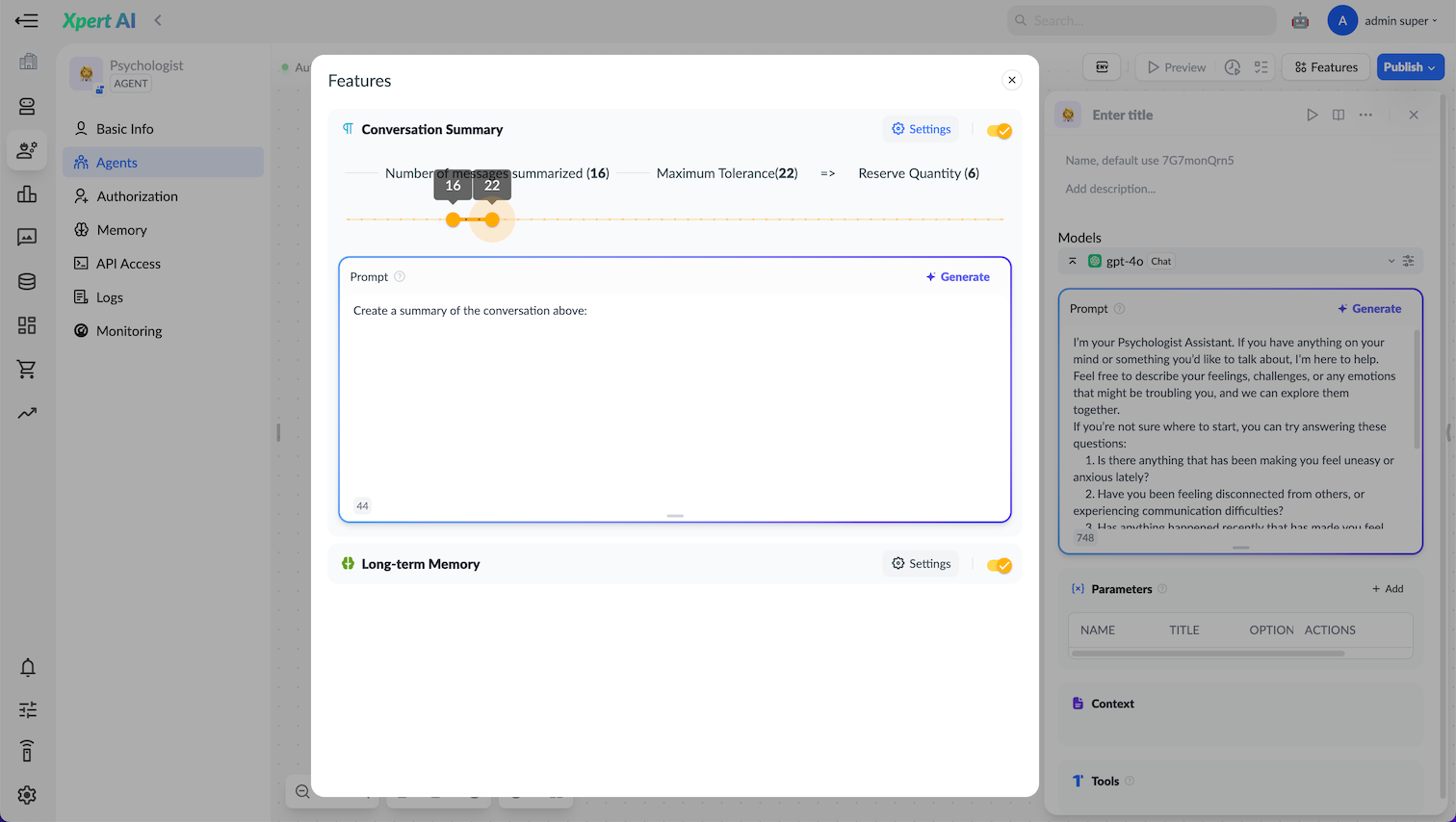
When the number of conversation messages exceeds the set maximum tolerance (e.g., 100 messages), Xpert will use the “Conversation Summary” feature to extract important information from historical conversations and convert it into concise summaries, reducing system memory burden and improving the focus and efficiency of subsequent conversations.🧠 Working Mechanism
- Maximum Tolerance: Sets the upper limit of new conversation messages allowed before starting to generate a new summary. For example, if shown as 22, this means that even if the conversation exceeds 16 rounds, the system will continue recording until reaching 22 rounds before triggering a new summary generation. This parameter helps avoid frequent summary generation, thereby reducing computational overhead.
- Number of Messages to Summarize: The number of messages to be summarized, for example, 16 in the figure means summarizing the first 16 messages out of 22 messages in the session.
- Retention Count: The number of messages retained after summarization, for example, 4 in the figure means retaining 4 messages, and the remaining messages will be deleted (appearing as summaries in system prompts).
- Prompt: Used to guide the system on how to summarize historical messages in conversations. If not provided, the system uses default prompts.
Example configuration: Maximum tolerance: 100 Summary trigger count: 40 👉 Retention count = 100 - 40 = 60 messages
📋 Application Scenarios
- Long-term interaction between users and agents
- Multi-round complex task follow-up
- Conversation flows requiring periodic knowledge summaries or task reviews
4. Long-term Memory
See Long-term Memory documentation.5. Memory Reply
Memory Reply functionality allows manually editing and storing specific Q&A-style memories for agents. When users ask questions, the system can prioritize matching these “memory” contents, directly generating high-quality, stable, and controllable replies, skipping the LLM’s free generation process. This mechanism effectively improves Q&A consistency and reliability, especially suitable for customized, rule-defined, or hallucination-sensitive scenarios.🧠 Working Mechanism
- Q&A Memory Creation: Developers can manually write several Q&A pairs (question + standard answer) for agents as Long-term Memory content.
- Similarity Matching: When users ask questions, the system uses Embedding vectors to calculate the similarity between user input and all memory questions.
- Score Threshold Judgment: Only when the similarity score ≥ set threshold will the system recall and directly return the first answer from the corresponding memory.
- Embedding Model: Uses the Embedding model configured for long-term memory. If not set, uses the system’s global default model.
⚙️ Configuration Parameter Description
📌 Application Scenarios
- ✅ Standardized replies for specific domains
Suitable for knowledge base scenarios in enterprises, government, education, finance, etc., where precise control over answers is needed for some questions, such as:- “What is the company’s customer service phone number?”
- “Can I delete my account?”
- “Does this system support overseas users?”
- ✅ Rapid Prototype (POC/DEMO) Construction
- ✅ Parallel use with RAG as stable fallback
✨ Feature Advantages
- 🎯 Improves answer stability and determinism
- 💡 Avoids hallucination issues from large model free generation
- 🧩 Supports parallel use with knowledge base, search, and other modules
6. Conversation Title
Conversation Title functionality automatically extracts a concise, summary title based on conversation content after the user initiates a session for the first time, serving as the session title for that round of conversation. This feature enhances the browsability and organization of multi-round conversations, especially suitable for scenarios with many agent chat records.
The system will automatically trigger title generation logic after the user sends the first message or when the system identifies that the conversation has initially formed.
🧩 Examples
🛠️ Configuration Suggestions
- For structured conversation scenarios (such as BI Q&A, ticket systems), it is recommended to customize prompts to generate titles based on user intent or entity fields.
-
Prompts should guide generation of concise, specific, no redundant words titles, for example:
7. File Upload
File Upload functionality allows users to upload specified types of files during conversations, inserting images or complete text into the current conversation to help AI better understand and respond to contextual questions.✅ Feature Description
- Upload Location: In the dialog box, users can upload files by clicking the 📎 icon (or “Upload a file” button).
- After Upload Effect: File content (such as document text, images, etc.) will be injected into the context as user messages for model reference, improving conversation understanding accuracy.
⚙️ Configuration Items
-
- Maximum Upload Count
- Value range: 1 ~ any value
- Meaning: Limits the number of files users can upload at once
- Example configuration: Maximum upload 10 files
-
- File Size Limits (by type)
-
- Supported File Types
- Documents:
TXT,MD,MDX,MARKDOWN,PDF,HTML,XLSX,XLS,DOC,DOCX,CSV,EML,MSG,PPTX,PPT,XML,EPUB - Images:
JPG,JPEG,PNG,GIF,WEBP,SVG - Audio (if enabled):
MP3,M4A,WAV,AMR,MPGA - Video (if enabled):
MP4,MOV,MPEG,WEBM
Supported file types can be configured through interface checkboxes. Non-checked types will be prohibited from uploading.
8. Text to Speech
Text to Speech (TTS) functionality supports users converting answer content to speech and playing it by clicking the read-aloud button after AI generates answers. This feature improves the accessibility and multimodal interaction capabilities of AI conversation systems, especially suitable for mobile scenarios, visually impaired users, information-intensive conversation scenarios with high reading pressure, etc.⚙️ Feature Description
9. Speech to Text
Speech to Text (STT) functionality allows users to use voice input instead of text input in dialog boxes. When this feature is enabled, users can click the microphone button to start recording, and the browser will capture the user’s voice content and convert it to text after completion, sending it as question content to AI.🔒 Privacy and Security Notes
- All voice content is only used for recognition purposes and is not stored or analyzed (unless user explicitly authorizes)
- Browser will prompt for microphone permission, users can close it at any time
📚 FAQ
❓1. Feature not working after enabling?
Possible causes and troubleshooting suggestions are as follows:❓2. How to troubleshoot file upload failures?
File upload failures commonly occur in the following situations:❓3. How to clear long-term memory content?
Long-term memory is used to save long-term conversation knowledge between users and Digital Experts, suitable for advanced scenarios such as customized replies and context understanding. To clear long-term memory, follow these steps:✅ Clear all long-term memory for a Digital Expert:
- Enter the long-term memory management interface for that Digital Expert
- Click the [Clear Memory] button, system will prompt for confirmation
- After confirmation, all memory entries for that agent will be deleted and cannot be recovered
✅ Delete partial memory entries:
- In the same “Memory Management” feature interface
- For entries to delete, click [Delete]
- Can also use keyword search and then delete matching content
- Clearing long-term memory will not affect short-term conversation history
- Memory cannot be recovered after clearing, please operate with caution
- After clearing, the system will rely on the base model to generate answers again, which may lack customized content